


This page outlines important considerations when creating cut data for decorative sheets. Cut data
is the information required to cut the sheets using a cutting machine (plotter). When using
software such as Illustrator, please be sure to observe the following guidelines.
Always create vector data
When cutting decorative sheets using a cutting machine (plotter), you must use software such as Adobe Illustrator to create your submission data in vector format.
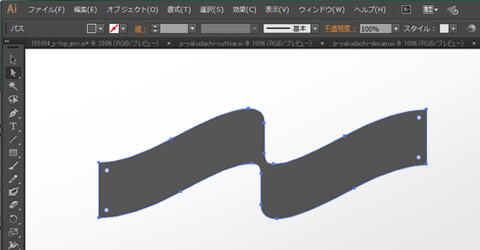
Convert text and line widths to outlines
Data created in vector format must be converted to outlines. Since cutting machines (plotters) cut along paths, any unnecessary paths left behind will also be cut. You can display the outlines
by pressing "Command+Y"*.
*For Illustrator (Mac).

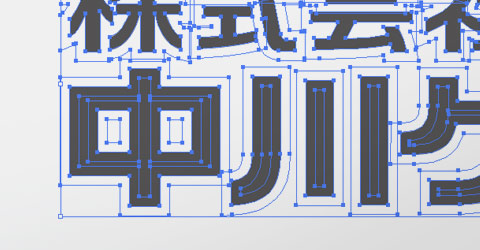
Merge Overlapping Objects
If the outline paths of multiple objects intersect and overlap, merge them into a single object. You can merge objects using the "Merge" option in the "Pathfinder" panel
*. *For
Illustrator (Mac)
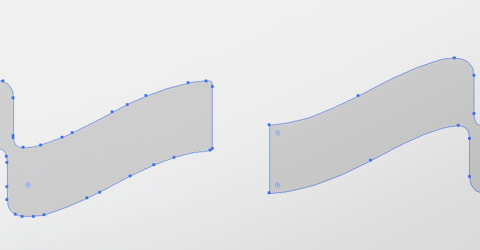
Keep Cut Paths as Simple
as Possible
Remove unnecessary anchor points as much as possible. The fewer anchor
points there are, the smoother the cut lines will be, resulting in a more beautiful finish. Be
especially careful when auto-tracing scanned images or when working with small objects.
Pay attention to the orientation of the data
when applying from the inside
When applying the film from the inside of glass or similar surfaces, you should mirror the data. However, when submitting the file to the installation company, be sure to inform them that it is for interior application. You can flip the production data by using "Reflect" under "Object" > "Transform.
" *For Illustrator (Mac)